

Protect your work and personal accounts with
two-factor authentication, manage passwords
and verification codes in Vault,
and organize your tasks in one place.


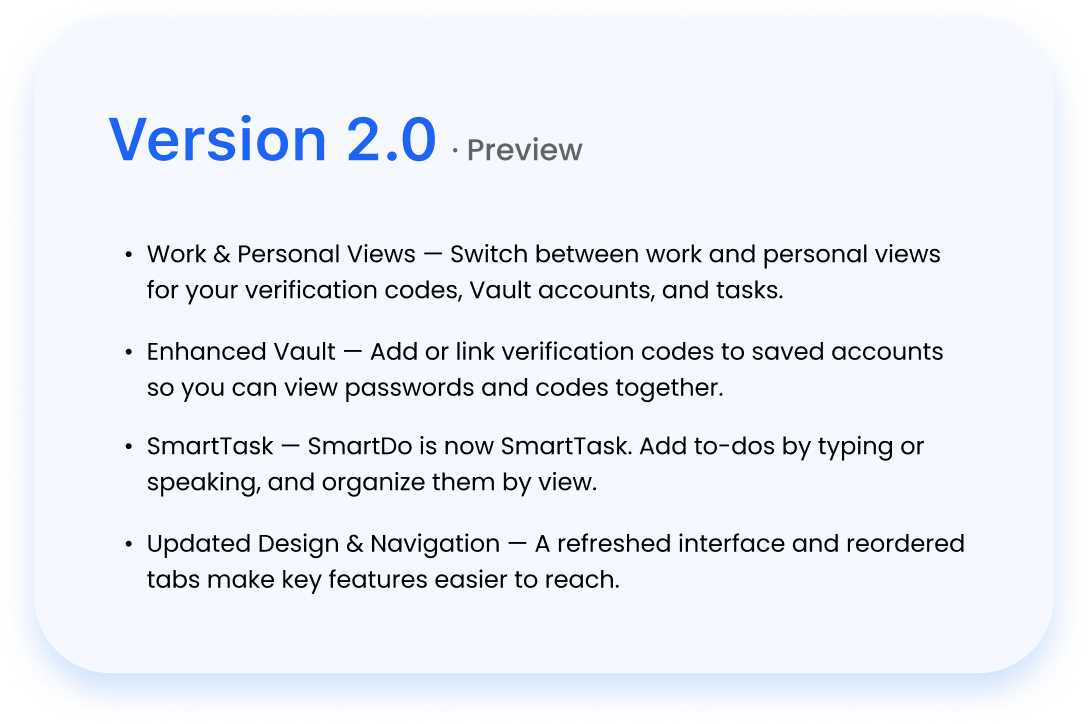
Switch between Work and Personal to see the
verification codes, Vault accounts, and tasks for each
view.

Scan a setup QR code to add an account and
generate time-based verification codes for
supported services.

Add a verification code to a saved account or link an
existing Authenticator entry. View the password and
code together in the account details.

Type or speak to add a task, and keep track of your work
and personal to-dos.

Add a SmartTask widget to your Home Screen to see
your tasks at a glance.
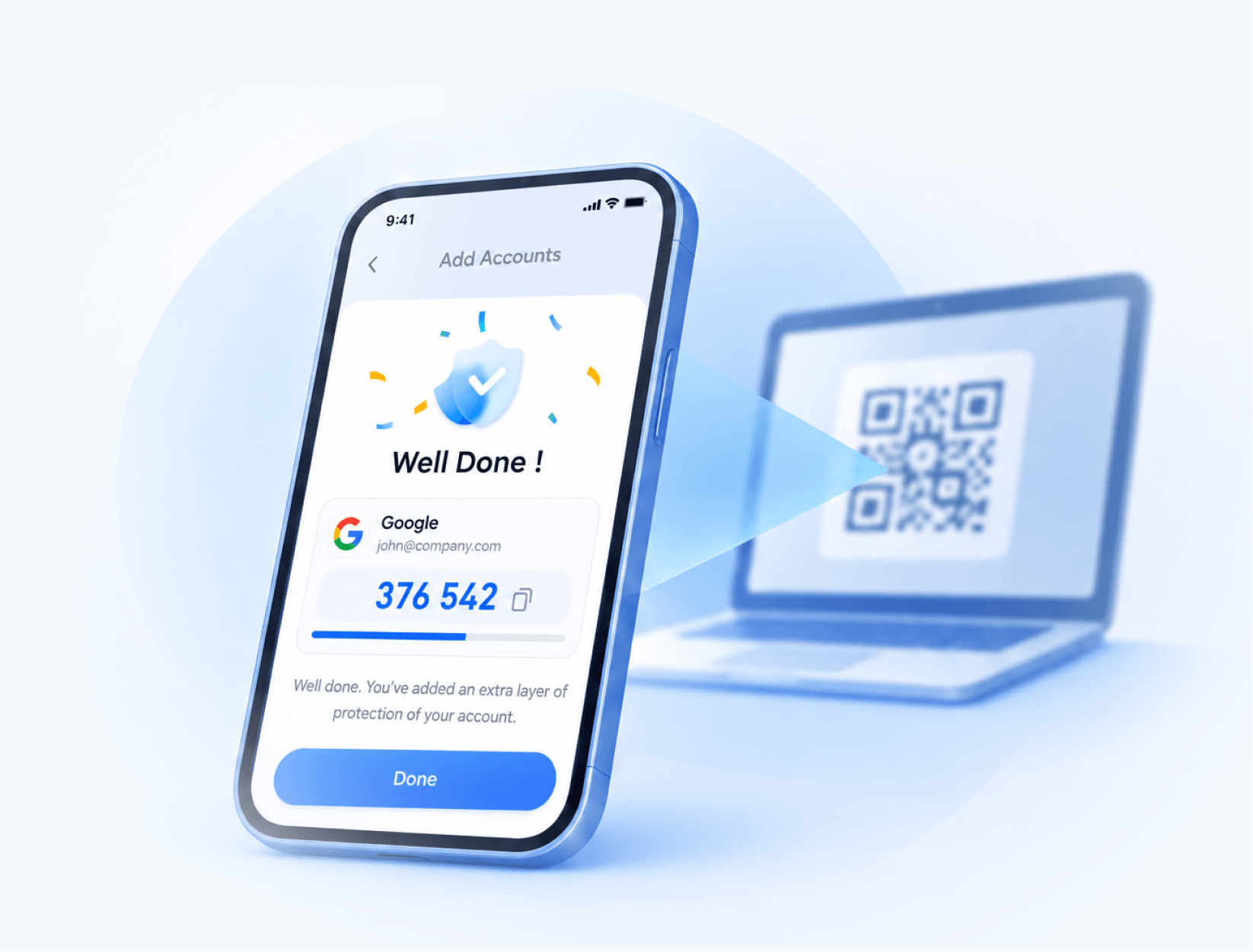
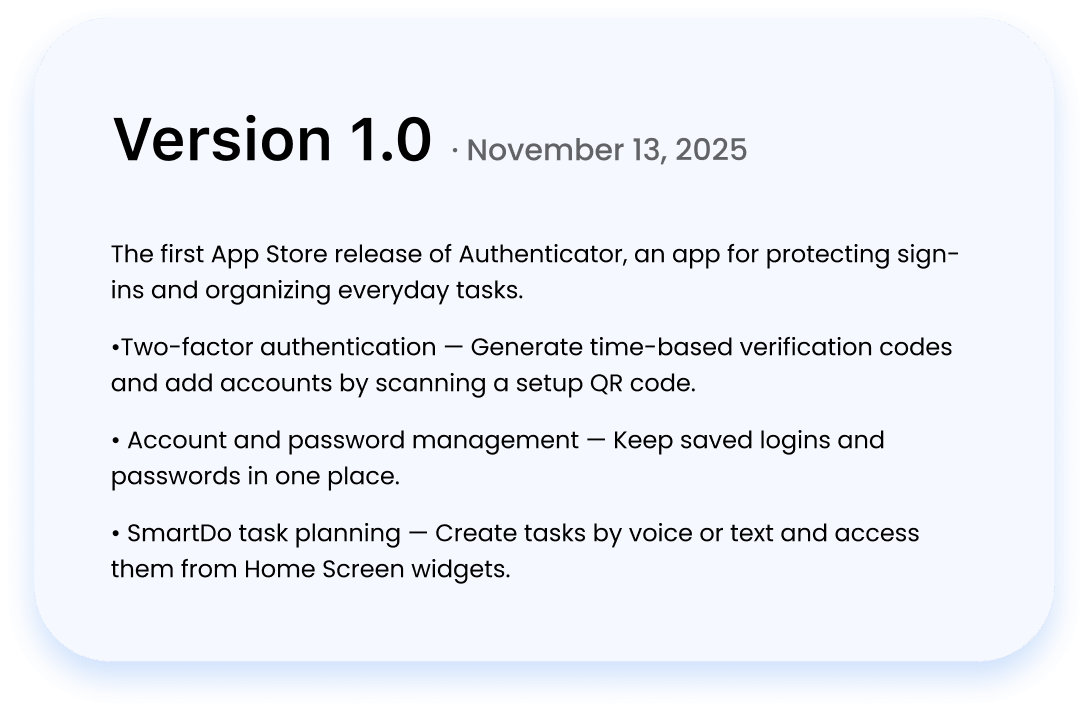
Open the service's security settings and choose an authenticator app as your verification method. In Authenticator, switch to Work, tap the add button, and scan the setup QR code.
You can add accounts that support time-based one-time passwords (TOTP). Look for an authenticator app option in the service's security settings.
Authenticator, Vault, and FocusDo show the codes, logins, and tasks for the selected workspace. New items are assigned to that workspace by default.
The verification code stays available in Authenticator, and the saved login stays in Vault. Your two-factor authentication settings with the service stay in place.
Need help? Contact Support
Find your 2FA codes quickly and organize logins and
tasks in Work and Personal workspaces.

Join QUANTUM NET LIMITED on an exciting journey towards tech-enabled
transformation.
Be part of a team that drives change and creates impact in the digital era.
Let’s innovate together,
taking your business to new heights.

Reach out to discover how QUANTUM NET LIMITED can revolutionize your digital landscape. Contact us today to start your transformation journey.

19H MAXGRAND PLAZA NO.3 TAI
YAU ST SAN PO KONG
HONG KONG
